How to Add Playlist to TiviMate
To add a playlist to TiviMate, open Add Playlist, choose the method that matches your account details, enter the URL or server login exactly, then wait for categories and guide data to sync. If channels do not appear, ch
Direct Answer
To add a playlist to TiviMate, open Add Playlist, choose the method that matches your account details, enter the URL or server login exactly, then wait for categories and guide data to sync. If channels do not appear, check hidden groups, account status, and cache before deleting the playlist.
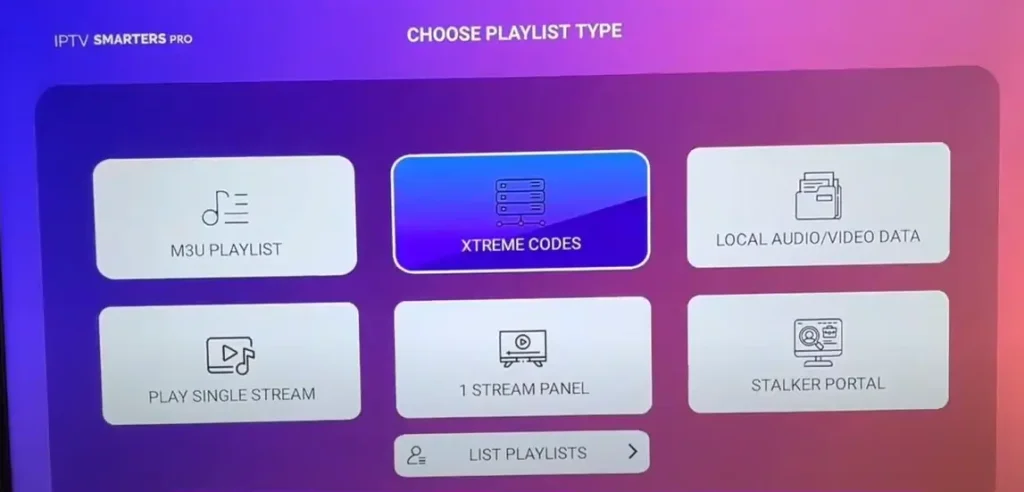
Fluxus editorial boundary: this guide is for legal setup, troubleshooting, device optimization, and streaming stability. It does not provide public playlist directories, modified apps, unauthorized live sports sources, or unsupported content access instructions.
Quick Fix Summary
- Use the exact login method your provider supplied.
- Check for spaces before and after the URL.
- Use copy/paste from a trusted device when possible.
- Wait for the first sync before refreshing EPG.
- Check hidden groups if the channel list looks empty.
- Test the same details in another player if TiviMate cannot load them.
Step-by-Step Solutions
- Install TiviMate from Google Play on Android TV or from a trusted official source on Firestick.
- Open TiviMate and choose Add Playlist.
- Select the playlist or server-login option that matches the details you received from your authorized provider.
- Enter the playlist URL or server URL, username, and password exactly. Watch for uppercase letters, dots, slashes, and spaces.
- Name the playlist clearly, such as Home TV or Main Account, so you can identify it later.
- Wait for TiviMate to load categories. Do not start changing guide settings until channels appear.
- After channels load, open EPG settings and refresh guide data.
- Open one live channel and test playback for two minutes.
- If channels are missing, open playlist settings and check group visibility. Hidden groups can make a working playlist look empty.
- If the playlist still fails, clear app cache and test the same details in VLC or IPTV Smarters before deleting everything.
Root Cause Explanation
TiviMate setup issues usually come from choosing the wrong playlist type or entering long credentials with a typo. TiviMate is only the player; it cannot fix an inactive account, unsupported source, or provider-side guide problem.
Recommended Settings / Tools
- Use Xtream-style server login when supplied because it often organizes categories and guide data cleanly.
- Refresh EPG only after channels have loaded.
- Set update interval to a practical schedule rather than constantly refreshing.
- Use hardware decoding on Firestick, ONN TV, and NVIDIA Shield for smoother playback.
- Keep one main playlist active during troubleshooting.
- Backup TiviMate settings after the setup is stable.
Cluster Navigation
- TiviMate Setup and Troubleshooting Hub
- TiviMate Setup Guide
- TiviMate Buffering Fix
- TiviMate Not Loading Channels
- TiviMate Review
- IPTV Buffering Fix Hub
- IPTV Smarters Setup and Troubleshooting Hub
- Firestick IPTV Setup Hub
- Android TV Optimization Hub
- VPN for IPTV Streaming Hub
FAQ
Why does TiviMate say playlist cannot be processed?
The URL may be wrong, the account may be inactive, the source may be down, or the selected login method may not match the account type.
Can hidden groups make channels disappear?
Yes. If categories are hidden, TiviMate may look empty even when the playlist loaded correctly.
Should I refresh EPG before channels load?
No. Load the channel list first, then refresh EPG.
Does TiviMate provide playlists?
No. TiviMate is a player and organizer. It does not provide subscriptions, playlists, or channels.
What should I test if TiviMate fails?
Test the same account in VLC or IPTV Smarters. If every app fails, contact the authorized provider.
Final Verdict
How to Add Playlist to TiviMate works best when you treat streaming as a system: device, app, network, account, and source legitimacy all matter. Start with the quick checks, use the step-by-step workflow, and return to the pillar page when you need broader support.