Best IPTV Setup for Android TV
The best IPTV setup for Android TV is a simple one: updated device firmware, one official player app, correct account details, hardware decoding, strong Wi-Fi or Ethernet, and a clean EPG refresh. NVIDIA Shield is best f
Direct Answer
The best IPTV setup for Android TV is a simple one: updated device firmware, one official player app, correct account details, hardware decoding, strong Wi-Fi or Ethernet, and a clean EPG refresh. NVIDIA Shield is best for power users, while ONN TV and built-in Android TV are fine when storage and Wi-Fi are managed.
Fluxus editorial boundary: this guide is for legal setup, troubleshooting, device optimization, and streaming stability. It does not provide public playlist directories, modified apps, unauthorized live sports sources, or unsupported content access instructions.
Quick Fix Summary
- Use Google Play versions of apps where available.
- Update firmware and restart before adding accounts.
- Choose one primary player for daily use.
- Use Ethernet or strong 5 GHz Wi-Fi.
- Enable hardware decoding for TV playback.
- Use VLC or another official player only as a test tool when troubleshooting.
Step-by-Step Solutions
- Choose your Android TV device. NVIDIA Shield is strongest, ONN TV is budget-friendly, and built-in TV systems are convenient but can be slower.
- Update Android TV firmware and Google Play services.
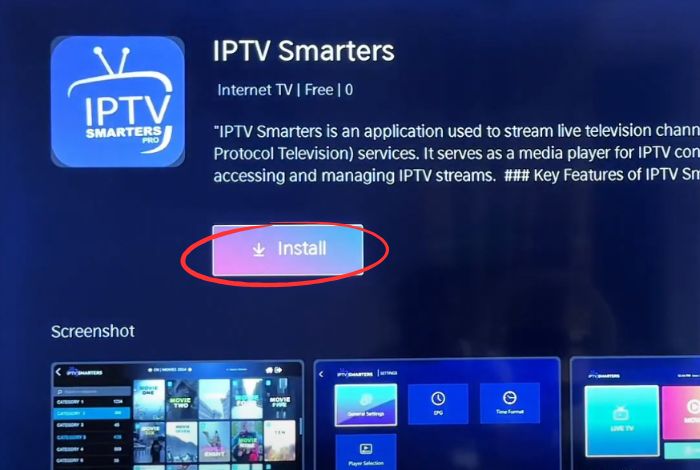
- Install one primary player from Google Play: TiviMate for guide-focused TV use, IPTV Smarters for simple account login, or VLC for basic compatibility testing.
- Add account details using the login method supplied by your authorized provider.
- Wait for the first channel and guide sync to complete.
- Enable hardware decoding or native playback mode.
- Set device time zone correctly before troubleshooting EPG.
- Test playback on Ethernet if possible. If Ethernet works and Wi-Fi does not, the setup problem is network placement, not the app.
- Keep only the apps you need and clear cache if the interface becomes slow.
- After the setup is stable, save favorites and backup app settings where supported.
Root Cause Explanation
Android TV setup quality depends on both app and hardware. A powerful device cannot fix expired credentials, and a good app cannot fix weak Wi-Fi or a full storage partition. The best setup is the one that is easy to update, easy to troubleshoot, and stable on your actual network.
Recommended Settings / Tools
- NVIDIA Shield: best for heavy guide interfaces, higher-bitrate streams, and power users.
- ONN TV: good value when storage is kept clean and apps are updated.
- Built-in Android TV: convenient but may need stricter cache and storage management.
- TiviMate: best for a TV-guide style experience.
- IPTV Smarters: best for quick login and multi-section accounts.
- VLC: best for testing whether a stream format is compatible.
Cluster Navigation
- Android TV Streaming Optimization Hub
- Android TV IPTV Setup
- Android TV IPTV Buffering
- Best IPTV Apps for Android TV
- Best Android TV Apps for Streaming
- IPTV Buffering Fix Hub
- TiviMate Setup and Troubleshooting Hub
- IPTV Smarters Setup and Troubleshooting Hub
- Firestick IPTV Setup Hub
- VPN for IPTV Streaming Hub
FAQ
Which Android TV device is best?
NVIDIA Shield is strongest, ONN TV is good value, and built-in Android TV works when firmware, storage, and Wi-Fi are maintained.
Which app should I use on Android TV?
Use TiviMate for a guide-focused TV layout, IPTV Smarters for simple login, and VLC for compatibility testing.
Why does Android TV buffer on Wi-Fi?
Distance, interference, router load, and weak TV antennas can all cause buffering even when phone speed tests look fine.
Should hardware decoding be on?
Yes for most Android TV devices. Turn it off only when it causes black screen, audio-only playback, or crashes.
What is the cleanest first setup?
One updated Android TV device, one official player, one account, VPN off, hardware decoding on, and one two-minute playback test.
Final Verdict
Best IPTV Setup for Android TV works best when you treat streaming as a system: device, app, network, account, and source legitimacy all matter. Start with the quick checks, use the step-by-step workflow, and return to the pillar page when you need broader support.