How to Use IPTV Smarters
Use IPTV Smarters by adding your account, letting the app load content sections, then testing Live TV, guide data, and player settings in that order. Do not judge the setup from the home screen alone; confirm login, chan
Direct Answer
Use IPTV Smarters by adding your account, letting the app load content sections, then testing Live TV, guide data, and player settings in that order. Do not judge the setup from the home screen alone; confirm login, channel loading, playback, and guide behavior separately.
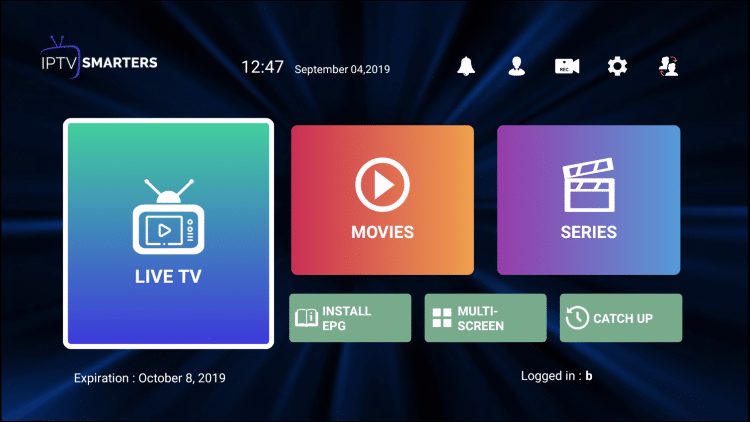
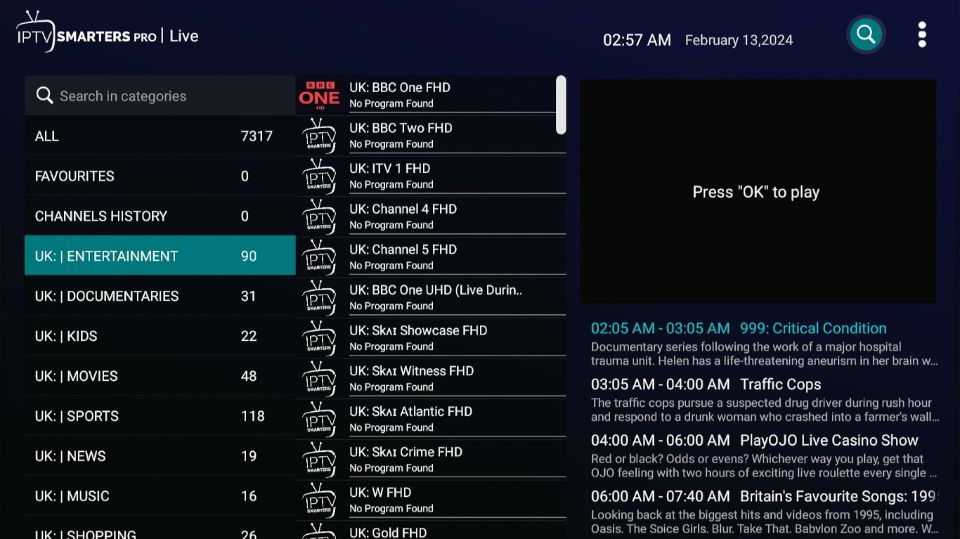
Fluxus editorial boundary: this guide is for legal setup, troubleshooting, device optimization, and streaming stability. It does not provide public playlist directories, modified apps, unauthorized live sports sources, or unsupported content access instructions.
Quick Fix Summary
- Add one account profile first.
- Test Live TV before changing settings.
- Refresh guide data if program times are missing or shifted.
- Clear cache if playback fails after successful login.
- Switch player mode only when video fails or stutters.
- Document exact errors before contacting support.
Step-by-Step Solutions
- Open IPTV Smarters and choose Add User or Login.
- Enter a profile name, then add the server URL, username, and password or playlist URL exactly as supplied.
- Wait for the app to load Live TV, movies, series, and catch-up sections if your account includes them.
- Open Live TV first and test one common channel for two minutes.
- Open the guide. If guide data is missing, refresh EPG and confirm your device time zone.
- Use Favorites for channels watched often. This is faster than searching every time with a TV remote.
- Open player settings if playback stutters, shows a black screen, or has audio but no video.
- Clear cache and force close the app if it becomes slow after the first sync.
- If the app logs out or fails repeatedly, remove the profile and add it again with freshly copied credentials.
- If the same issue appears on another device or player, contact the authorized provider with examples.
Root Cause Explanation
Many IPTV Smarters problems are not installation problems. Users can install the app correctly but still have login errors, missing guide data, black screens, or buffering because account details, decoder settings, cache, or network quality are wrong.
Recommended Settings / Tools
- Keep one clean user profile during setup.
- Use hardware/native player mode first on Firestick and Android TV.
- Refresh guide data manually after adding the account.
- Use search and favorites to reduce remote-control friction.
- Clear cache, not app data, for first troubleshooting.
- Save login details before removing a profile.
Cluster Navigation
- IPTV Smarters Setup and Troubleshooting Hub
- IPTV Smarters Setup Guide
- IPTV Smarters Playback Error Fix
- IPTV Smarters Review
- IPTV Smarters Best Settings
- IPTV Buffering Fix Hub
- TiviMate Setup and Troubleshooting Hub
- Firestick IPTV Setup Hub
- Android TV Optimization Hub
- VPN for IPTV Streaming Hub
FAQ
What should I open first in IPTV Smarters?
Open Live TV first, then guide data, then settings. This tells you whether login, content loading, and playback are working.
Why does IPTV Smarters show a black screen?
Common causes include decoder mismatch, source downtime, outdated app version, cache problems, or an account that logs in but cannot play streams.
How do I fix missing guide data?
Check device time zone, refresh EPG, and confirm your account includes guide data.
Can I add more than one account?
Yes, but add only one account during first setup so troubleshooting stays simple.
Should I clear data or cache?
Clear cache first. Clear app data only when you are ready to re-enter all login details.
Final Verdict
How to Use IPTV Smarters works best when you treat streaming as a system: device, app, network, account, and source legitimacy all matter. Start with the quick checks, use the step-by-step workflow, and return to the pillar page when you need broader support.