IPTV Smarters Setup Guide
IPTV Smarters setup works best when you identify your device first, install the official app, then choose the login option that matches your account details. Use server URL, username, and password when supplied; use play
Direct Answer
IPTV Smarters setup works best when you identify your device first, install the official app, then choose the login option that matches your account details. Use server URL, username, and password when supplied; use playlist URL only when that is the exact method your authorized provider gives you. After login, verify Live TV, EPG, external player, and cache behavior before changing VPN or advanced playback settings.
Fluxus editorial boundary: this guide is for legal setup, troubleshooting, device optimization, and streaming stability. It does not provide public playlist directories, modified apps, unauthorized live sports sources, or unsupported content access instructions.
Quick Fix Summary
- Install IPTV Smarters from an official app store or the official app website for your platform.
- Choose the login method that matches the details you received.
- Copy credentials exactly when possible instead of retyping long URLs.
- Allow the app to finish loading live TV, movies, series, and guide sections.
- Clear cache if login succeeds but playback does not start.
- Update or reinstall only after checking credentials, storage, decoder mode, and network stability.
Step-by-Step Solutions
- Step 1: Confirm device type first: Firestick/Fire TV, Android TV/Google TV, iPhone/iPad, Android phone/tablet, Windows, Samsung TV, or LG TV. Use this to decide the correct install source.
- Step 2: Prepare account details before opening the app: profile name, server URL, username, password, and playlist URL (only if your provider specifically uses playlist login).
- Step 3: Open the official app source for your platform and install IPTV Smarters. Do not install from random mirrors or renamed clone packages.
- Step 4: Launch IPTV Smarters and choose TV layout on remote devices (Firestick/Android TV) or mobile layout on phones/tablets.
- Step 5: On first open, confirm the app reaches the login screen without crashing. If it crashes here, restart device and free storage before continuing.
- Step 6: Choose login method carefully. Use 'server URL + username + password' when available. Use playlist URL only when that is your official account method.
- Step 7: Enter credentials exactly. Watch for hidden spaces, uppercase letters, wrong slashes, and http vs https mistakes.
- Step 8: Tap or click Add User/Login and wait for first sync. Do not back out while categories and guide are loading.
- Step 9: Open Live TV and test one stable channel for at least two minutes. This is your baseline playback test.
- Step 10: Open EPG/TV Guide and confirm program time is correct. If shifted, fix device time zone and refresh EPG.
- Step 11: Open Movies/Series only after Live TV works. If Live TV works but VOD fails, treat it as section-specific, not full setup failure.
- Step 12: If playback stutters or black-screens, open settings and test alternate player/decoder mode before reinstalling.
- Step 13: If login succeeds but channels do not load, clear app cache, restart device, and retry the same login once.
- Step 14: Run one comparison test in VLC or TiviMate with the same account. If all players fail, issue is likely account/source side.
- Step 15: Record device model, app version, login method used, exact error text, and test time. This makes support resolution much faster.
Firestick Full Walkthrough
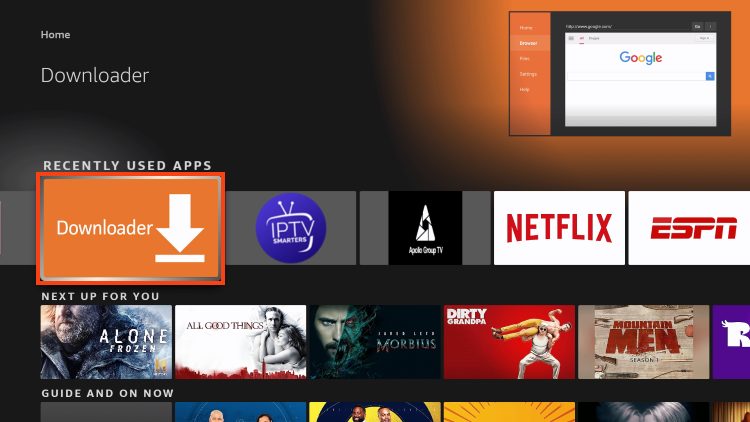
- Open Settings > My Fire TV > About > Check for Updates and install pending updates.
- Open Settings > Applications > Manage Installed Applications and free storage if space is low.
- Install IPTV Smarters from official source path for your region.
- Open IPTV Smarters and pick TV layout.
- Choose server login if provided by your account.
- Enter profile name, server URL, username, password exactly.
- Submit and wait for first sync to complete.
- Open Live TV and run a two-minute playback test.
- Open TV Guide and verify time alignment.
- If buffering appears, restart router and Firestick, then retest same channel.
- If issue persists, clear cache and test same account once more.
- If still failing, test same account in VLC or TiviMate and compare results.
Android TV / Google TV Full Walkthrough
- Update system firmware from Settings > System > About > System Update.
- Install IPTV Smarters from official source path for your device.
- Restart the TV box once after installation.
- Open app and choose TV layout.
- Select login method that matches your account details.
- Enter credentials carefully and submit.
- Wait for first category and guide sync.
- Test one live channel first; do not jump to all sections immediately.
- Refresh EPG once if guide is blank or offset.
- If channel opens with audio only, test alternate decoder/player option.
- If categories stay empty, clear cache and retry same login once.
- If still failing, compare same account in another player before reinstalling.
Credential Entry Checklist
- Confirm you are using the correct login method for your account type before typing.
- Check there is no space before or after URL, username, or password.
- Confirm URL protocol is correct: http or https exactly as provided.
- Do not merge fields. Server URL belongs in URL field only; username/password in their own fields.
- If available, copy and paste from a saved note instead of typing long URLs with remote.
First Playback Validation
- Play one live channel for at least two minutes.
- Switch to a second channel in a different category.
- Open TV Guide and confirm program names and times are present.
- Open Movies or Series only after live channels pass baseline.
- If any section fails, document which section fails instead of treating it as total app failure.
If Setup Fails, Follow This Order
- Recheck login method and credentials.
- Clear cache and restart device.
- Retest with VPN off.
- Retest on another network if possible.
- Test same account in another official player.
- If all players fail, contact provider with exact error and test time.
Platform Notes
- iPhone/iPad: if login works on iOS but fails on TV, issue is usually TV-side input, storage, or decoder behavior.
- Windows: use keyboard entry to eliminate typo risk on long URLs.
- Samsung/LG smart TVs: app version and store availability can vary by region; test on a TV box if native app behavior is inconsistent.
- Do not tune premium features before base login and playback are stable.
Root Cause Explanation
IPTV Smarters does not provide channels by itself. It is a player interface that depends on valid account details, a compatible device, clean app cache, and a stable network. Most setup problems come from choosing the wrong login mode, typing credentials incorrectly, using an outdated or unofficial app build, letting a first sync fail halfway, or judging playback before the device has enough storage and network stability.
Recommended Settings / Tools
- Use server URL plus username/password when available because it usually handles categories and guide data more cleanly.
- Keep the app updated from the same official source where it was installed.
- Enable hardware decoding or native player mode when video starts but stutters.
- Set the correct time zone if guide data is shifted by hours.
- Use Ethernet or strong 5 GHz Wi-Fi for TVs far from the router.
- Keep login details saved outside the app before clearing app data.
- Delete installer files on Firestick after install so low storage does not cause crashes or failed guide refreshes.
- Use one active profile during troubleshooting; add multiple profiles only after the first account works.
Cluster Navigation
- IPTV Smarters Setup and Troubleshooting Hub
- How to Use IPTV Smarters
- IPTV Smarters Playback Error Fix
- IPTV Smarters Review
- IPTV Smarters Best Settings
- IPTV Buffering Fix Hub
- TiviMate Setup and Troubleshooting Hub
- Firestick IPTV Setup Hub
- Android TV Optimization Hub
- VPN for IPTV Streaming Hub
FAQ
Does IPTV Smarters include channels?
No. IPTV Smarters is a player app. It needs valid account details from a service you are authorized to use.
Which login method should I choose?
Choose the method that matches your account details. Use server URL with username and password when those fields are supplied.
Why does IPTV Smarters say authorization failed?
The usual reasons are expired service, wrong server URL, wrong username or password, extra spaces, or provider-side downtime.
Why does IPTV Smarters load channels but not play?
The app may have cached data, decoder settings may be incompatible, the network may be unstable, or the source may be down.
Can I use IPTV Smarters on Samsung or LG TV?
Often yes, depending on the model and app availability in your region. If the app is unavailable, an Android TV box or Firestick can be easier to support.
Should I use a VPN before setup?
No. Complete the first login and playback test with VPN off, then test VPN separately for privacy or routing stability.
What should I do after manual installation on Firestick?
Delete the installer file, restart Firestick, open the app, and test one channel before changing player or VPN settings.
Final Verdict
IPTV Smarters Setup Guide works best when you treat streaming as a system: device, app, network, account, and source legitimacy all matter. Start with the quick checks, use the step-by-step workflow, and return to the pillar page when you need broader support.