How to Set Up IPTV on Firestick
To set up IPTV on Firestick, install a supported player app first, then add the account details from the service you are authorized to use. The reliable path is: prepare the Firestick, install the player, enter the serve
Direct Answer
To set up IPTV on Firestick, install a supported player app first, then add the account details from the service you are authorized to use. The reliable path is: prepare the Firestick, install the player, enter the server URL, username, and password or playlist URL, refresh guide data, then test live playback before changing advanced settings.
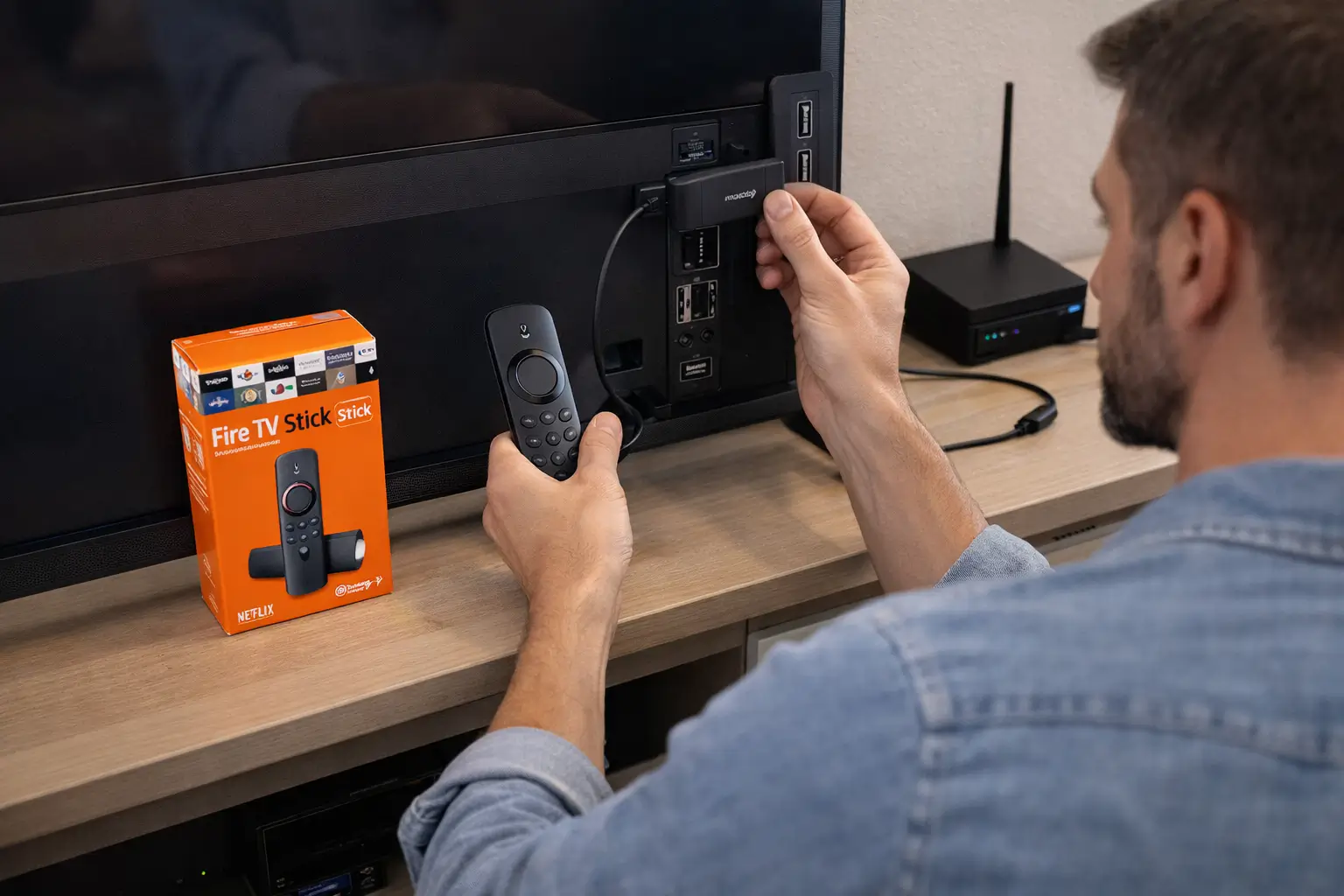
Fluxus editorial boundary: this guide is for legal setup, troubleshooting, device optimization, and streaming stability. It does not provide public playlist directories, modified apps, unauthorized live sports sources, or unsupported content access instructions.
Quick Fix Summary
- Use the Amazon Appstore when the player is available there.
- If a player requires Downloader, use only the official developer download page.
- Keep the server URL, username, and password visible while typing them in.
- Restart the Firestick after installing the player.
- Test one live channel for two minutes before changing buffer or VPN settings.
- Clear app cache if the channel list loads but playback fails.
Step-by-Step Solutions
- Update Fire OS first: open Settings, choose My Fire TV, then About, and install any available update.
- Check storage: open Settings, choose Applications, then Manage Installed Applications. Remove unused apps if free space is low.
- Install a supported player from the Amazon Appstore when possible, such as IPTV Smarters if available in your region.
- If your chosen player is not in the store, install Downloader from the Amazon Appstore, allow installs for Downloader only, and use the official player website or developer download URL. Do not use random file mirrors.
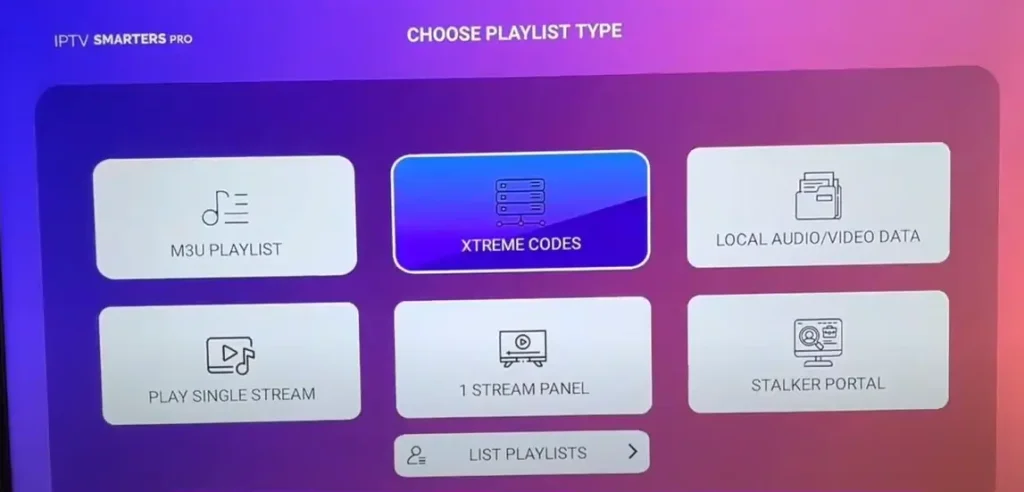
- Open the player and choose the login method your provider supplied: server URL with username and password, or a playlist URL.
- Enter every field exactly. Watch for uppercase letters, missing slashes, spaces at the end of a URL, and mixed-up username/password fields.
- Wait for the first sync to finish. Do not force close the app while categories, guide data, or VOD sections are loading.
- Open one stable live channel, then one on-demand item if your plan includes it. If only one section fails, the problem is not the whole Firestick setup.
- Open the player settings and set hardware decoding or native player mode if video stutters. Leave advanced buffer settings on automatic until the first test is complete.
- If playback buffers, move the Firestick closer to the router, try 5 GHz Wi-Fi, or test an Ethernet adapter before reinstalling the app.
Root Cause Explanation
Most Firestick setup failures happen because the app was installed from the wrong source, the login details were typed with extra spaces, the Firestick has low storage, or the device is on weak Wi-Fi behind the TV. Treat setup as a checklist: device readiness, app source, login accuracy, first sync, playback test, and then performance tuning.
Recommended Settings / Tools
- Firestick 4K Max or newer is better for heavy app interfaces and high-bitrate streams.
- Use 5 GHz Wi-Fi when the Firestick is close to the router; use 2.4 GHz only when range is the issue.
- Keep at least 1 GB of free storage before judging app performance.
- Use hardware decoding or native player mode first; change software decoding only when video fails to start.
- Refresh guide data after the account is added and after any provider-side account change.
- Turn VPN off for the first setup test, then test VPN separately if privacy or routing is required.
Cluster Navigation
- Firestick IPTV Setup Hub
- How to Install IPTV Apps on Firestick
- IPTV Setup for Beginners
- Firestick Streaming Setup Guide
- Firestick Streaming Lag Fix
- IPTV Buffering Fix Hub
- TiviMate Setup and Troubleshooting Hub
- IPTV Smarters Setup and Troubleshooting Hub
- Android TV Optimization Hub
- VPN for IPTV Streaming Hub
FAQ
What is the fastest way to set up IPTV on Firestick?
Install a supported player, enter the account details exactly, wait for the first sync, and test one live channel before changing advanced settings.
Why does my Firestick app install but show no channels?
The most common causes are incorrect login details, an inactive account, a mistyped server URL, or a first sync that did not complete.
Should I use Downloader on Firestick?
Use Downloader only when the app is not available in the Amazon Appstore and only with the official developer download page.
Do I need a VPN during Firestick setup?
No. Complete the first setup with VPN off so you can confirm the account, app, and network work normally. Test VPN later as a separate step.
What should I do if channels load but buffer?
Clear cache, restart the router and Firestick, test 5 GHz Wi-Fi or Ethernet, then compare the same account in another official player.
Final Verdict
How to Set Up IPTV on Firestick works best when you treat streaming as a system: device, app, network, account, and source legitimacy all matter. Start with the quick checks, use the step-by-step workflow, and return to the pillar page when you need broader support.