Firestick Streaming Setup Guide
A good Firestick streaming setup starts before the app: update Fire OS, clean storage, stabilize Wi-Fi, install one supported player, then test account login and playback. This order prevents the common mistake of blamin
Direct Answer
A good Firestick streaming setup starts before the app: update Fire OS, clean storage, stabilize Wi-Fi, install one supported player, then test account login and playback. This order prevents the common mistake of blaming the player when the Firestick is overloaded or the network is unstable.
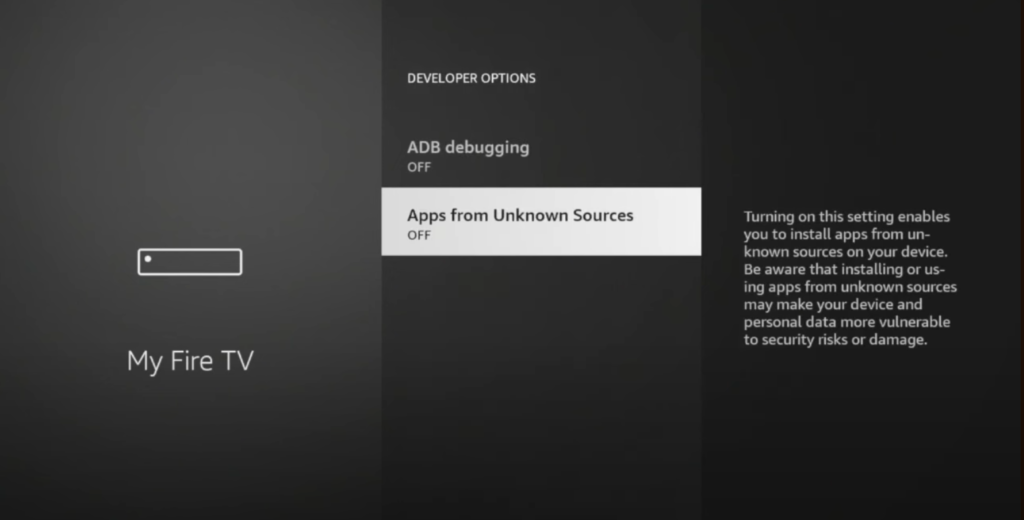
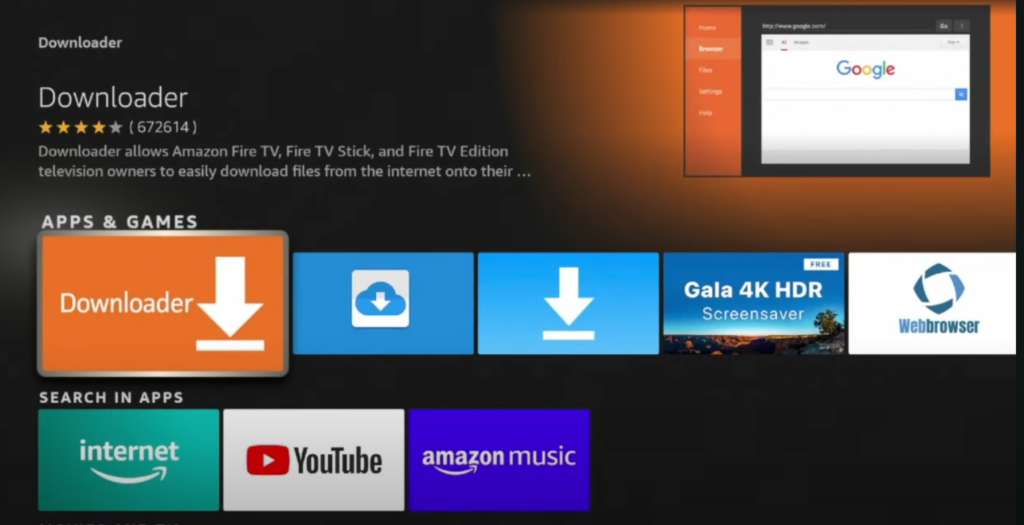
Fluxus editorial boundary: this guide is for legal setup, troubleshooting, device optimization, and streaming stability. It does not provide public playlist directories, modified apps, unauthorized live sports sources, or unsupported content access instructions.
Quick Fix Summary
- Update Fire OS before installing player apps.
- Remove unused apps and keep storage available.
- Use the HDMI extender to reduce heat and improve Wi-Fi position.
- Install one supported player first.
- Test with VPN off before comparing VPN performance.
- Use Ethernet adapter if Wi-Fi remains unstable.
Step-by-Step Solutions
- Connect the Firestick with the HDMI extender if possible. This moves it away from TV heat and can improve Wi-Fi reception.
- Open Settings, then My Fire TV, then About, and install Fire OS updates.
- Open Manage Installed Applications and remove apps you no longer use.
- Restart the Firestick and router before installing the streaming player.
- Install one player from the Appstore or official developer source.
- Add your authorized account details and wait for the first sync.
- Test one live channel, then guide data, then one second category.
- If buffering appears, test 5 GHz Wi-Fi, move the router or Firestick, or use Ethernet adapter.
- If the app interface is slow, clear cache and check free storage again.
- After the setup works, add favorites and adjust guide settings for daily use.
Root Cause Explanation
Firestick is a small streaming device with limited storage and a Wi-Fi antenna often hidden behind the TV. Setup problems are frequently caused by heat, weak signal, old firmware, background apps, or installing too many players before testing one working setup.
Recommended Settings / Tools
- Firestick 4K Max is preferred for smoother navigation and stronger Wi-Fi.
- Use 5 GHz Wi-Fi when close to router; use Ethernet for the most stable result.
- Keep unused apps removed and free storage above 1 GB.
- Use hardware/native decoding before changing buffer size.
- Use the HDMI extender to reduce heat and signal blockage.
- Test VPN only after baseline playback works without it.
Cluster Navigation
- Firestick IPTV Setup Hub
- How to Set Up IPTV on Firestick
- How to Install IPTV Apps on Firestick
- IPTV Setup for Beginners
- Firestick Streaming Lag Fix
- IPTV Buffering Fix Hub
- TiviMate Setup and Troubleshooting Hub
- IPTV Smarters Setup and Troubleshooting Hub
- Android TV Optimization Hub
- VPN for IPTV Streaming Hub
FAQ
Why is Firestick setup slow from the start?
Low storage, old Fire OS, weak Wi-Fi, heat, or too many background apps can slow setup before the player is even tested.
Should I install several IPTV players?
No. Start with one supported player, confirm it works, then add a second only for comparison or troubleshooting.
Does the HDMI extender matter?
Often yes. It can reduce heat from the TV and improve Wi-Fi reception.
When should I use Ethernet?
Use Ethernet when Wi-Fi signal is weak, crowded, or inconsistent near the TV.
What is the first support detail to collect?
Collect Firestick model, Fire OS version, player app name/version, login method, error message, and whether VPN was on or off.
Final Verdict
Firestick Streaming Setup Guide works best when you treat streaming as a system: device, app, network, account, and source legitimacy all matter. Start with the quick checks, use the step-by-step workflow, and return to the pillar page when you need broader support.